

How to Sync Salesforce Cases to Jira and Keep the Case Updated
An account manager asks support if a customer’s bug is fixed ahead of a renewal call. Support asks engineering in Slack. The engineer replies with a link to the Jira work item, which has been marked Done for days. Three people stopped what they were doing to find a status that was already in Jira.
Syncing Salesforce cases to Jira prevents these interruptions while keeping everyone in the loop. The account manager can check the Salesforce case ahead of their renewal call, see the update from Jira, and never have to ask anyone else for any updates.
This guide covers this workflow in depth, options for a Salesforce-Jira integration, and other things to watch out for.
Why one-way Salesforce-Jira escalation breaks
When they need to automatically escalate Salesforce cases to Jira, many teams turn to one-way automation tools. These tools can handle the initial escalation (i.e., creating the Jira work item), but that’s all they do. Status updates, comments, and questions don’t sync back unless someone builds multiple automations and chains them together. Chaining these automations can cause its own problems, however.
Automations don’t have built-in duplicate detection. Anything from the same case being escalated by two separate agents to a field change triggering an automation can lead to duplicate items in Jira. Engineering has to triage the same bug twice, unless someone spots the duplicate early.
Automation chains also require significant maintenance. When something breaks, someone has to go through every automation and test it to find the issue. During that maintenance, cases are still being escalated, but aren’t being transferred over to Jira, leading to constant requests for follow-ups between support and engineering.
One-way escalation doesn’t reliably achieve the most important part of this workflow: maintaining context and communicating updates. That’s why it breaks.
What to map between a Salesforce case and a Jira work item
Mapping the right fields is essential for building a reliable escalation workflow between Salesforce and Jira. Not every field needs to move data in both directions, but some two-way data flows are crucial.
| Salesforce case field | Jira work item field | Recommended direction | Why? |
| Subject | Summary | Salesforce to Jira | Unless engineers need to create Salesforce cases from Jira work items, this field only needs to go in one direction |
| Description | Description | Salesforce to Jira | Reproduction details travel once, and any rewrites in Jira don’t need to be synced back |
| Status | Status | Jira to Salesforce | The case reflects engineering progress |
| Priority | Priority | Two-way | Either team can communicate urgency |
| Type | Work item type | Salesforce to Jira | A “Problem” case becomes a Bug |
| Product | Component | Salesforce to Jira | Routes the work item to the right team |
| Case owner | Assignee | Don’t map | In most cases, there’s little overlap between assignees in either tool |
| Internal comments | Comments | Two-way | Questions and answers move without Slack |
| Attachments | Attachments | Salesforce to Jira | Screenshots and logs reach engineering |
| Case number | Text | Salesforce to Jira | Developers can track escalated work items to Salesforce cases if needed |
| URL | Link to work item | Jira to Salesforce | Teams in Salesforce can open associated Jira work items |
| SLA target date (custom date field) | Due date | Salesforce to Jira | Engineering sees customer support’s deadline |
Want to see a more detailed field mapping guide? Check out Unito’s Jira-Salesforce integration guide.
There’s no need to map every single field, and not every field needs to be a two-way sync. Here are other things to keep in mind when it comes to mapping fields for this workflow:
- Statuses need value pairings: Statuses in Salesforce and Jira might not map exactly one-to-one, meaning you’ll need to match them based on your workflow rather than just matching them.
- Comment filtering: Some integration platforms might allow you to filter comments between Jira and Salesforce, preventing internal chatter between engineers from reaching support, where it would just be noise.
Three ways to build a Jira integration with Salesforce
There are many ways to connect Salesforce and Jira for this workflow, but three of them represent the wider market: Salesforce Flow, marketplace connectors, and Unito’s two-way sync.
| Method | What you build | What comes back to the case | Suited for |
| Salesforce Flow plus Jira automation | A flow with an HTTP callout to create the work item, plus a Jira automation rule that calls Salesforce on transition | Whatever the Jira rule sends, usually one status update | Low volume, an admin on each side, and the case only needs a “resolved” signal |
| Marketplace connectors | An app installed in both tools | Varies per app, usually a one-way data push or a preview panel in a Salesforce case | Agents mostly need to see, create, or link a work item from a Salesforce case |
| Two-way sync with Unito | One flow with rules and field mappings | Status, comments and mapped fields for as long as the items stay paired | Escalations are ongoing conversations between support and engineering |
Salesforce Flow plus Jira automation
Salesforce Flow and Jira’s built-in automation can each handle one direction of an escalation. In Salesforce, a record-triggered flow watches for an escalated case. It then uses an HTTP Callout action to create a Jira work item through Jira’s API. In Jira, an automation rule watches for a status change. It then uses the Send web request action to update the case through Salesforce’s API.
Neither side needs a separate app, so this is often where Salesforce and Jira admins start. The cost is in the build. Before the callout can run, the Salesforce admin has to set up a named credential and an external credential, and the callout has to sit on the flow’s asynchronous path. On the Jira side, every rule run counts against your Jira Cloud plan’s monthly automation limit. Each direction is a separate build that a different admin owns. Comments need their own pair of rules on top of that.
MuleSoft Composer is the Salesforce-native way to build the same one-way flows without callouts. The Jira-Salesforce integration guide covers how it works.
Marketplace connectors (AppExchange or Atlassian Marketplace)
Both Salesforce and Jira have marketplaces with apps that allow users to build integrations. The actual functionality of these integrations varies depending on the app you use, since most of them are built by third parties. Some, like Peeklogic, can be used to build a bidirectional sync, while others like Appfire can enable automated work item creation, add a search for connected items in other tools, and display an aggregated view of comments across tools.
Two-way sync with Unito
Unito is a two-way sync platform that allows business users to link Jira projects with their Salesforce workspace, automatically escalating Salesforce cases to the right project when they match certain requirements. From there, work items and cases are kept in sync automatically as engineers work on the issue or support agents add context. No complex chains of one-way automations and no code.
Unito does have limits, like only syncing one Salesforce object type per flow and attributing all comments to the account used to sync changes.
How to sync Salesforce cases to Jira with Unito
In Unito, the connection between 2 tools is called a flow. The steps below build one flow that creates a Jira work item for each escalated Salesforce case, then keeps the 2 updated as support and engineering work.
Step 1: Connect Salesforce and Jira to Unito
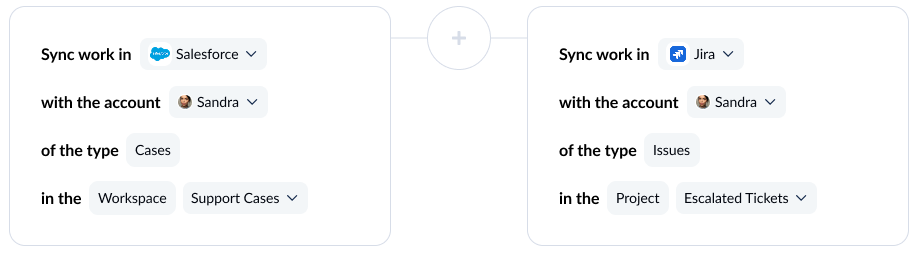
Connect Salesforce and Jira, then pick the Jira project that should receive escalations. Use a dedicated integration account in each tool rather than a teammate’s login. Synced comments post under the connected account, so a dedicated account makes it clear which comments came from the other tool, and the flow keeps working if someone leaves the team. Check that the account has the permissions Unito needs before you continue.
Step 2: Choose flow direction from Salesforce to Jira
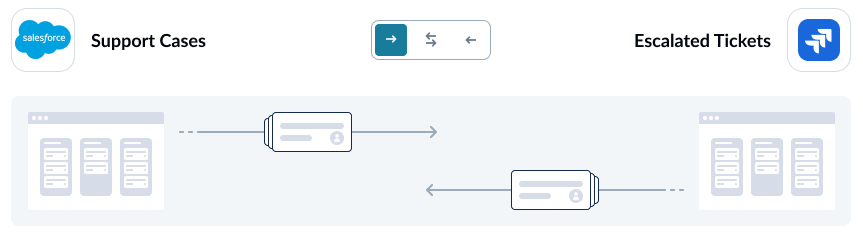
Flow direction decides where new items get created with Unito’s Salesforce-Jira integration. For escalations, set it from Salesforce to Jira, so a case can create a work item but not the other way around. Flow direction only controls creation. In step 4, each field gets its own direction, so status and comments can still come back to the case.
Step 3: Set rules so only escalated Salesforce cases reach Jira
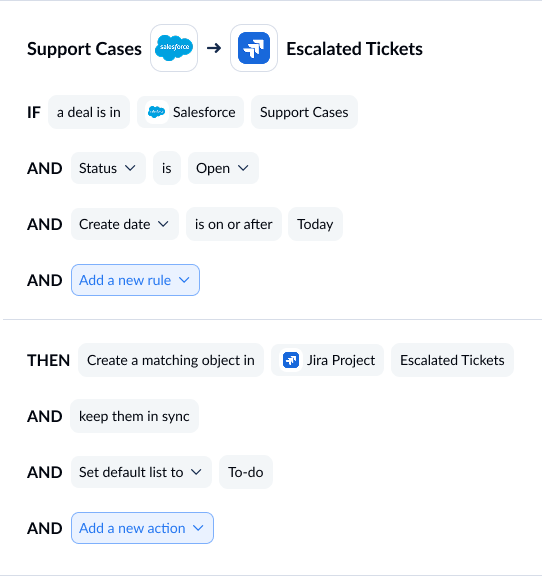
Rules decide which cases enter the flow. Add a rule on a field your agents set only when a case needs engineering. The cleanest option is a dedicated checkbox, such as “Escalate to engineering.” Avoid building the rule on Status: once Jira starts sending status updates back to the case, the status changes, and the case may no longer match. Add a second rule on Product or Type if different Jira projects handle different products.
By default, Unito only syncs cases created after the flow launches, so old cases won’t flood the Jira project.
Step 4: Map fields between Salesforce cases and Jira work items
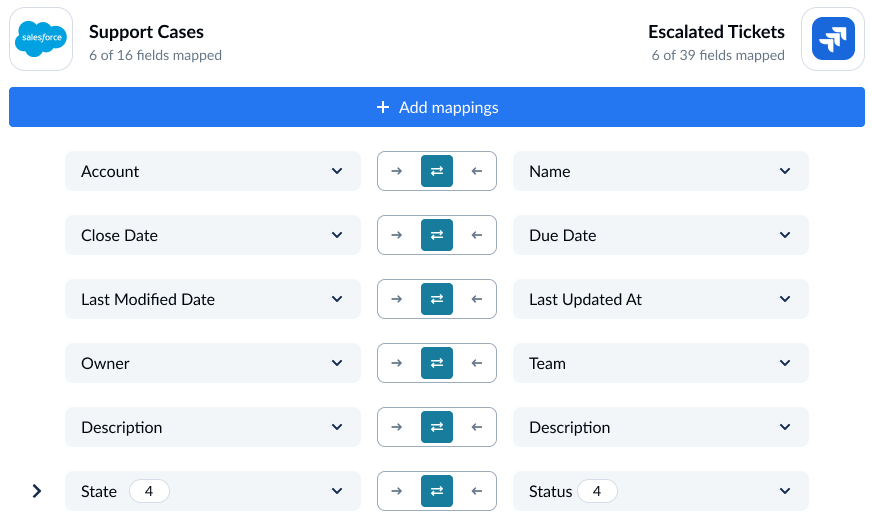
Field mappings decide what travels and in which direction. Use the table earlier in this guide as your starting point: case details go to Jira one-way, status comes back to the case one-way, and priority and comments sync both ways.
Status and priority need value pairings, because the 2 tools use different lists. A pairing for a typical escalation might look like this:
[Screenshot: Jira statuses paired with Salesforce case statuses]
- Jira To Do and In Progress → Escalated on the case
- Jira Done → Fix ready on the case (a custom status you add in Salesforce)
- Salesforce High → Jira Highest, Medium → High, Low → Medium
Unito’s help center explains how to map statuses in more detail.
Step 5: Launch your Salesforce-Jira flow
Launch the flow. After an initial sync, Unito will check for changes in real-time. To test it, check “Escalate to engineering” on a test case and confirm the work item appears in Jira. Then move the work item to In Progress and confirm the case status changes to Escalated.
Jira to Salesforce: What to do when engineering finds the issue first
Most ticket escalation workflows focus on moving work items in one direction, from Salesforce to Jira. But, in some cases, engineering might find a bug that’ll affect a specific slice of customers before anyone’s filed a case in Salesforce. In these situations, engineering needs a way to communicate what they’ve found without going into a chat app like Slack or bringing customer support into Jira.
With a platform like Unito, you can set up a two-way Jira-Salesforce integration with more restrictive rules for creating Salesforce cases, matching how engineers would flag an issue to customer support. A “customer-impacting” label, for example, could trigger the creation of that Salesforce case. This is different from the typical one-way flow you’d use in this kind of workflow if you only wanted work items to be created in one direction.
FAQ: Sync Salesforce cases to Jira
What’s the best tool to escalate Salesforce cases to Jira?
A two-way sync tool like Unito is usually the best way to escalate Salesforce cases to Jira, since it can both create items and keep them in sync as engineering works on escalated cases. These tools are usually easy enough to set up for business users, since they’re no-code. That means engineering doesn’t always have to be the one maintaining them.
Can several Salesforce cases link to one Jira work item?
This depends on the integration platform you use. Most can only pair a single Salesforce case with a single Jira work item. Every escalated Salesforce case becomes its own Jira work item.
Do support agents need a Jira license to follow escalations?
Not when you use the right integration. If you integrate Salesforce with Jira, support agents never have to go into Jira to get updates on escalations. Relevant updates are synced from Jira back to Salesforce, including comments, status changes, and questions from developers.
What happens if the case closes before engineering finishes?
This depends on the integration platform you use and how you map status fields. If you map these fields in both directions, closing a Salesforce case will update the status in the associated Jira work item — usually “Closed” or “Done.” If you anticipate that this will happen often, you might want to avoid mapping the Closed status in Salesforce with a similar status in Jira or map statuses one-way, from Jira to Salesforce.
Can a Jira work item create a Salesforce case?
Yes, if you use a two-way sync platform. Jira work items can create a Salesforce case based on certain parameters (e.g., an “affects customers” label). From there, work items can be kept up to date in both tools as teams work.
Ready to start?
Meet with a Unito product expert and see what a two-way sync can do for your ticket escalation process.